
This document describes the configuration required to enable Single sign-on (App registration) for DPG Outlook Office Addin.
New or Existing customer ?

If you are a new customer, this app registration will be prepared as part of the initial configuration and delivery.


If you are an existing customer, and you have not previously prepared for using the new DPG Outlook Office Addin, you need to configure the app registration as instructed below. Once this is completed, and details about the app registration are handed over to the DPG Service Center, you you should not make changes to the app registration unless instructed by Timengo DPG Support.
DPG Outlook Office Addin authenticates with Azure as a Registered Application and authenticates using OAuth 2.0. For more information about this, see this Microsoft page.
There are two ways to register the app with Azure: You can run the PowerShell script provided below, or you can manually configure Azure by following step-by-step instructions. See also this page for Step-by-step instructions.
This is the PowerShell script that can configure Azure for you:
Create-DPGAppRegistration script (zip file)
Or you can view it and copy it from here:
# DPG Office Addin PowerShell Script Template
# Script to create Azure App Registration for DPG Office Add-in
# Requires Azure AD PowerShell module (Az.Resources) and Microsoft.Graph module

# Parameters
param(
    [Parameter(Mandatory=$false)]
    [string]$AppName = "DPG Office Add-in (dpgofficeaddin.dpgapi.dk)",

    [Parameter(Mandatory=$false)]
    [string[]]$RedirectUris = @(
        "https://dpgofficeaddin.dpgapi.dk",
        "brk-multihub://dpgofficeaddin.dpgapi.dk"
    ),

    [Parameter(Mandatory=$false)]
    [string]$MicrosoftOfficeClientId = "ea5a67f6-b6f3-4338-b240-c655ddc3cc8e"
)

# Check if required modules are installed
if (-not (Get-Module -ListAvailable -Name Az.Resources)) {
    Write-Host "Azure AD PowerShell module not found. Installing..."
    Install-Module -Name Az.Resources -Scope CurrentUser -Force
}

if (-not (Get-Module -ListAvailable -Name Microsoft.Graph)) {
    Write-Host "Microsoft Graph PowerShell module not found. Installing..."
    Install-Module Microsoft.Graph -Scope CurrentUser -Force
}

# Import required modules
Import-Module Az.Resources
Import-Module Microsoft.Graph.Applications
Import-Module Microsoft.Graph.Authentication

# Disconnect from Azure AD and Microsoft Graph
Write-Host "Disconnecting from Azure AD and Microsoft Graph... So we can connect with required permissions"
Disconnect-AzAccount -ErrorAction SilentlyContinue
Disconnect-MgGraph -ErrorAction SilentlyContinue

# Connect to Azure AD and Microsoft Graph with required permissions
try {
    Write-Host "Connecting to Azure AD and Microsoft Graph..."
    Connect-AzAccount | Out-Null
    Connect-MgGraph -Scopes "Application.ReadWrite.All", "AppRoleAssignment.ReadWrite.All", "Directory.ReadWrite.All" | Out-Null
}
catch {
    Write-Error "Failed to connect to Azure AD or Microsoft Graph: $_"
    exit 1
}

# Resolve tenant to use
$tenants = Get-AzTenant | Select-Object Id, Name, DefaultDomain

if (-not $tenants -or $tenants.Count -eq 0) {
    throw "No tenants available for the signed-in account."
}

if ($tenants.Count -gt 1) {
    Write-Host "Multiple tenants found:`n"
    for ($i = 0; $i -lt $tenants.Count; $i++) {
        $t = $tenants[$i]
        Write-Host ("[{0}] {1} ({2}) - {3}" -f ($i+1), $t.Name, $t.DefaultDomain, $t.Id)
    }

    do {
        $choice = Read-Host "Enter the number of the tenant to use"
        $parsed = 0
        $validInt = [int]::TryParse($choice, [ref]$parsed)
        $valid = $validInt -and ($parsed -ge 1) -and ($parsed -le $tenants.Count)
        if (-not $valid) { Write-Host "Invalid choice. Try again." -ForegroundColor Yellow }
    } while (-not $valid)

    $selectedTenantId = $tenants[$parsed - 1].Id
}
else {
    $selectedTenantId = $tenants[0].Id
}

# Ensure Az context is set to the selected tenant
Set-AzContext -Tenant $selectedTenantId | Out-Null

# Use this single tenant ID throughout
$tenantId = $selectedTenantId
Write-Host "Directory (tenant) ID selected: $tenantId"

# If multiple tenants were available, align Microsoft Graph connection to the selected tenant
if ($tenants.Count -gt 1) {
    Write-Host "Aligning Microsoft Graph connection to selected tenant..."
    Disconnect-MgGraph -ErrorAction SilentlyContinue | Out-Null
    Connect-MgGraph -TenantId $selectedTenantId -Scopes "Application.ReadWrite.All","AppRoleAssignment.ReadWrite.All","Directory.ReadWrite.All" | Out-Null
}

# Create the application registration
try {
    # Create the application
    Write-Host "Creating application registration..."
    $app = New-AzADApplication -DisplayName $AppName -SignInAudience "AzureADMyOrg"

    if (-not $app) {
        throw "Failed to create application"
    }

    Write-Host "Application created successfully!"
    Write-Host "Application (client) ID: $($app.AppId)"

    # Tenant ID already resolved earlier
    Write-Host "Directory (tenant) ID: $tenantId"

    # Update the application with redirect URIs

    Update-AzADApplication -ObjectId $app.Id -SPARedirectUri $RedirectUris

    # Set the Application ID URI
    Write-Host "Setting Application ID URI..."
    $appIdUri = "api://dpgofficeaddin.dpgapi.dk/$($app.AppId)"
    Update-AzADApplication -ObjectId $app.Id -IdentifierUris $appIdUri

    # Wait for the application to be available in Microsoft Graph
    Write-Host "Waiting for application to be available in Microsoft Graph..."
    $retryCount = 0
    $maxRetries = 5
    $mgApp = $null

    do {
        Start-Sleep -Seconds 5
        $mgApp = Get-MgApplication -Filter "AppId eq '$($app.AppId)'"
        $retryCount++
    } while ($null -eq $mgApp -and $retryCount -lt $maxRetries)


    if ($null -eq $mgApp) {
        throw "Failed to find application in Microsoft Graph after $maxRetries attempts"
    }

    # Create scope ID that we'll use for both the scope and pre-authorized application
    $scopeId = [guid]::NewGuid()

    # First, create the scope
    Write-Host "Adding 'Authenticated' scope..."
    $scopeParams = @{
        "api" = @{
            "oauth2PermissionScopes" = @(
                @{
                    "id" = $scopeId
                    "adminConsentDescription" = "Authenticated"
                    "adminConsentDisplayName" = "Authenticated"
                    "userConsentDescription" = "Authenticated"
                    "userConsentDisplayName" = "Authenticated"
                    "isEnabled" = $true
                    "type" = "User"
                    "value" = "Authenticated"
                }
            )
        }
    }


    Update-MgApplication -ApplicationId $mgApp.Id -BodyParameter $scopeParams

    # Then, add the pre-authorized application
    Write-Host "Pre-authorizing Microsoft Office client..."
    Start-Sleep -Seconds 5  # Wait for scope to be fully created

    $preAuthParams = @{
        "api" = @{
            "preAuthorizedApplications" = @(
                @{
                    "appId" = $MicrosoftOfficeClientId
                    "delegatedPermissionIds" = @($scopeId)
                }
            )
        }
    }

    Update-MgApplication -ApplicationId $mgApp.Id -BodyParameter $preAuthParams


    # Add Microsoft Graph permissions
    Write-Host "Adding API permissions..."
    $graphResourceId = "00000003-0000-0000-c000-000000000000" # Microsoft Graph

    $requiredResourceAccess = @{
        "requiredResourceAccess" = @(
            @{
                "resourceAppId" = $graphResourceId
                "resourceAccess" = @(
                    @{
                        "id" = "64a6cdd6-aab1-4aaf-94b8-3cc8405e90d0" # email
                        "type" = "Scope"
                    },
                    @{
                        "id" = "37f7f235-527c-4136-accd-4a02d197296e" # openid
                        "type" = "Scope"
                    },
                    @{
                        "id" = "14dad69e-099b-42c9-810b-d002981feec1" # profile
                        "type" = "Scope"
                    },
                    @{
                        "id" = "570282fd-fa5c-430d-a7fd-fc8dc98a9dca" # Mail.Read
                        "type" = "Scope"
                    },
                    @{
                        "id" = "e1fe6dd8-ba31-4d61-89e7-88639da4683d" # User.Read
                        "type" = "Scope"
                    },
                    @{
                        "id" = "e383f46e-2787-4529-855e-0e479a3ffac0" # Mail.Send
                        "type" = "Scope"
                    },
                    @{
                        "id" = "7b9103a5-4610-446b-9670-80643382c1fa" # Mail.Read.Shared
                        "type" = "Scope"
                    },
                    @{
                        "id" = "a367ab51-6b49-43bf-a716-a1fb06d2a174" # Mail.Send.Shared
                        "type" = "Scope"
                    }
                )
            }
        )
    }


    Update-MgApplication -ApplicationId $mgApp.Id -BodyParameter $requiredResourceAccess

    # Update manifest to set accessTokenAcceptedVersion to 2
    Write-Host "Setting accessTokenAcceptedVersion to 2..."
    $manifestUpdate = @{
        "api" = @{
            "requestedAccessTokenVersion" = 2
        }
    }
    Update-MgApplication -ApplicationId $mgApp.Id -BodyParameter $manifestUpdate

    # Create a service principal for the application
    Write-Host "Creating service principal..."
    $servicePrincipal = New-MgServicePrincipal -AppId $app.AppId
    Start-Sleep -Seconds 5  # Wait for service principal to be fully created

    # Get Microsoft Graph service principal
    Write-Host "Getting Microsoft Graph permissions..."
    $graphServicePrincipal = Get-MgServicePrincipal -Filter "AppId eq '$graphResourceId'"

    # Grant admin consent for all required permissions
    Write-Host "Granting admin consent for permissions..."
    try {
        Write-Host "Service Principal ID: $($servicePrincipal.Id)"
        Write-Host "Graph Service Principal ID: $($graphServicePrincipal.Id)"
        New-MgOauth2PermissionGrant `
            -ClientId $servicePrincipal.Id `
            -ConsentType "AllPrincipals" `
            -ResourceId $graphServicePrincipal.Id `
            -Scope "email openid profile Mail.Read User.Read Mail.Send Mail.Read.Shared Mail.Send.Shared"
        Write-Host "Successfully granted admin consent for permissions" -ForegroundColor Green
    }
    catch {
        Write-Host "Failed to grant admin consent for permissions: $_" -ForegroundColor Red
    }

    Write-Host "App registration setup completed successfully!"
    Write-Host ""
    Write-Host "Application details for handover to Timengo DPG:"
    Write-Host "Application (client) ID: $($app.AppId)"
    Write-Host "Directory (tenant) ID: $tenantId"

    $cwd = Split-Path -Path $PSCommandPath -Parent
    Set-Content -Path $cwd\DPGOfficeAddin-TechnicalDetails.txt -Value "Application (client) ID: $($app.AppId)`nDirectory (tenant) ID: $tenantId"
    write-host "Details saved to $cwd\DPGOfficeAddin-TechnicalDetails.txt"

    # Disconnect from Azure AD and Microsoft Graph
    Write-Host "Disconnecting from Azure AD and Microsoft Graph..."
    Disconnect-AzAccount -ErrorAction SilentlyContinue | Out-Null
    Disconnect-MgGraph -ErrorAction SilentlyContinue | Out-Null
}
catch {
    Write-Error "Failed to create app registration: $_"
    exit 1
}
Trin-for-trin-vejledning
Ved at følge trinene for manuel Azure-konfiguration får du bedre forståelse for opsætningen. Scriptet ovenfor er en automatiseret version af trinene nedenfor. Bemærk, at det er vigtigt at gennemføre hvert trin i den angivne rækkefølge!
Gennemfør følgende trin for at konfigurere App registration i Azure:
1. Log ind på Azure som administrator, og gå til Microsoft Entra ID.
2. Vælg App registrations, og vælg New registration:
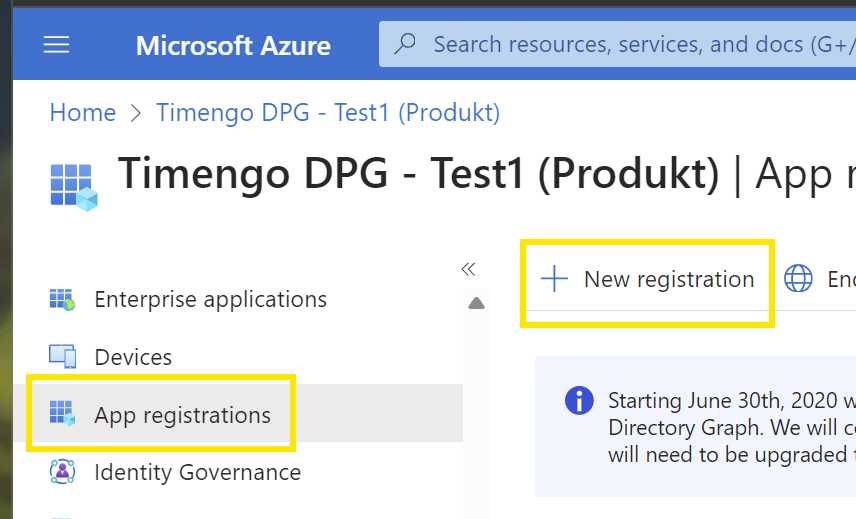
3. Angiv detaljer for app-registreringen
Sæt Name til DPG Office Add-in (dpgofficeaddin.dpgapi.dk)
Vælg Supported account types som Accounts in this organization directory only (Single tenant)
Sæt Redirect URI til Single-page application (SPA), og sæt værdien til https://dpgofficeaddin.dpgapi.dk
Afslut ved at vælge Register.
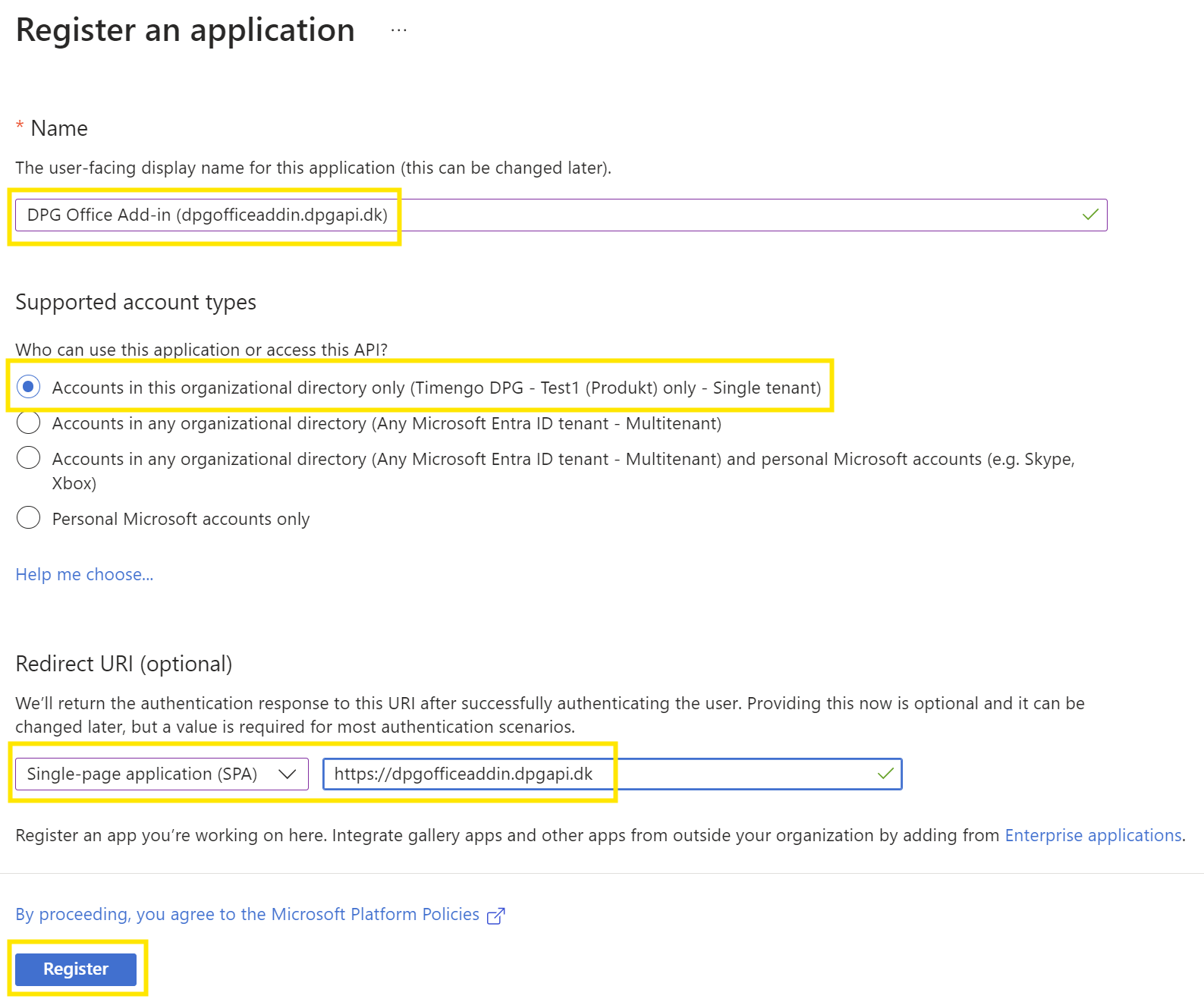
4. Notér Application (client) ID og Directory (tenant) ID fra sektionen Overview som markeret nedenfor.
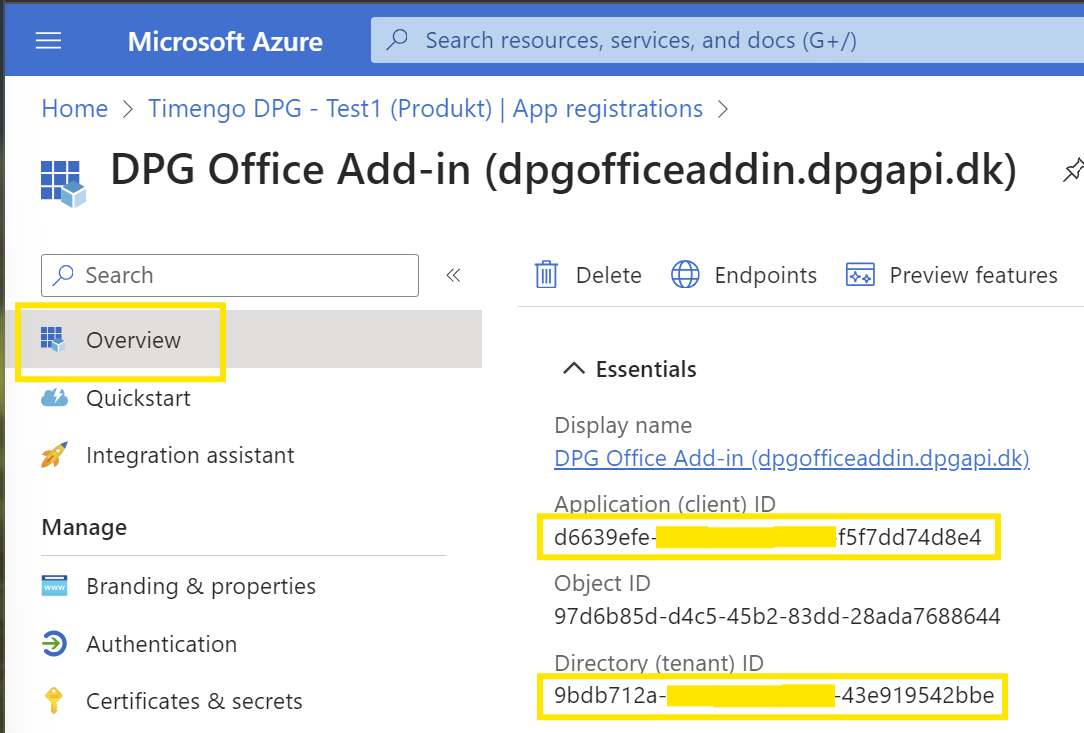
5. Vælg Expose an API, og vælg Add for at oprette en Application ID URI.
6. Opdatér Application ID URI til api://dpgofficeaddin.dpgapi.dk/<Application (client) ID>, og afslut ved at vælge Save:
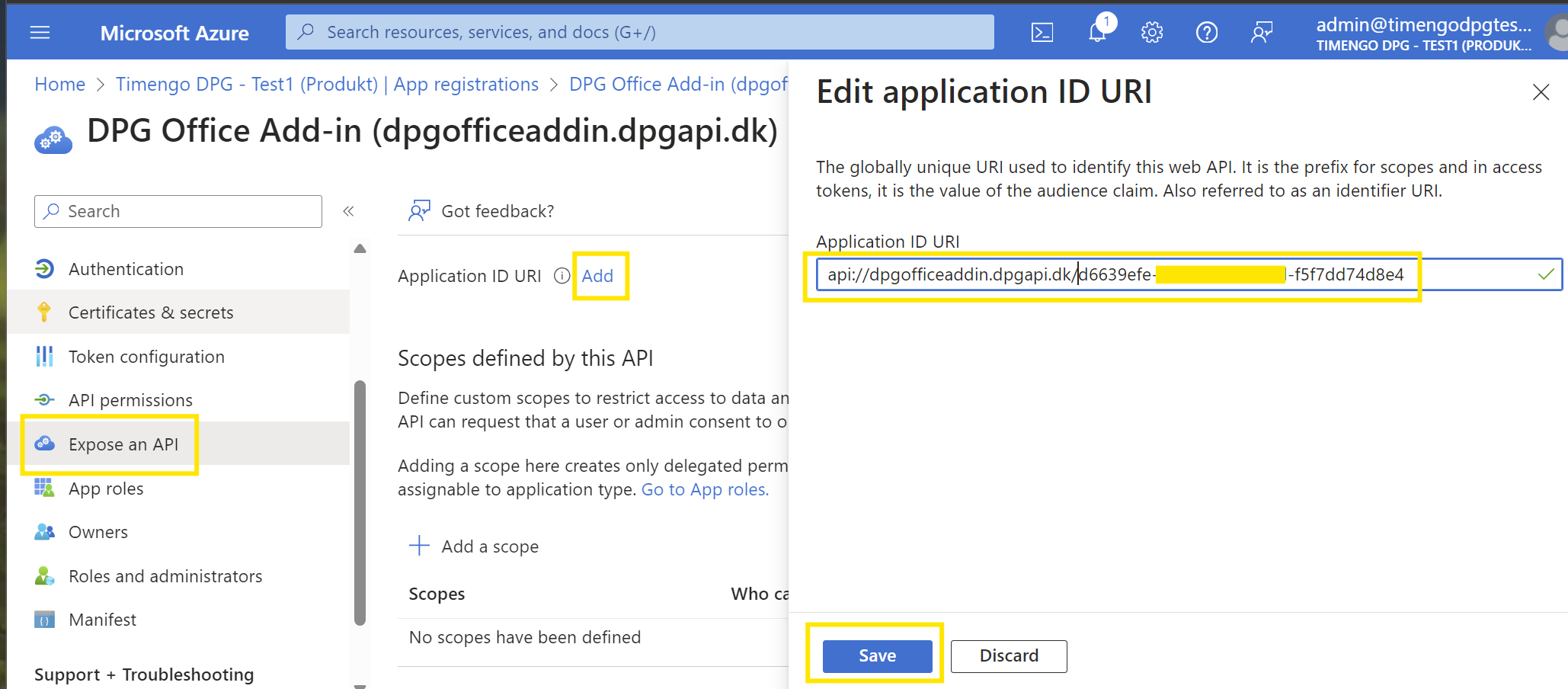
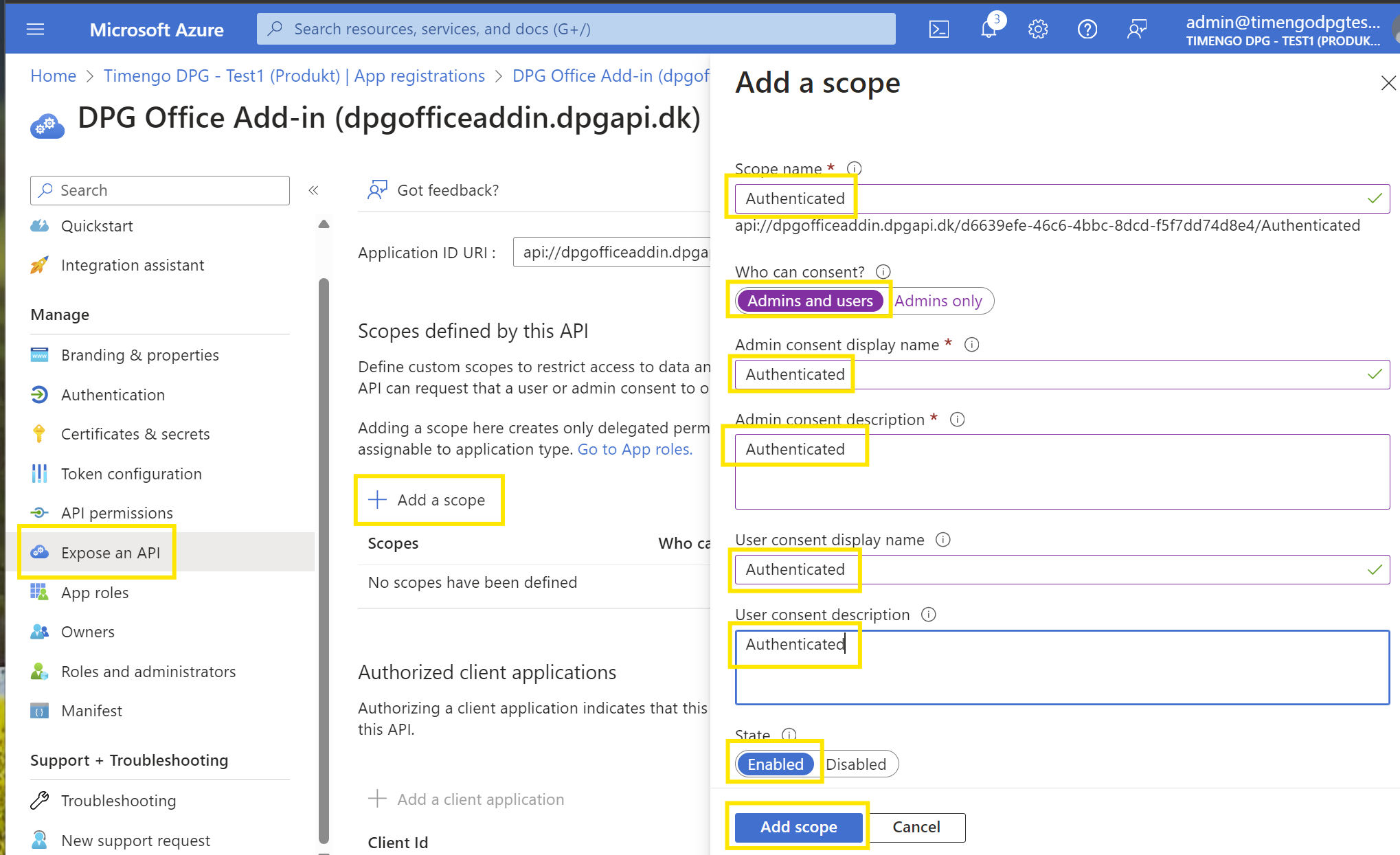
7. Vælg nu Add a scope i panelet Expose an API, og indsæt teksten Authenticated som vist nedenfor. Sørg for at vælge Admin and users i feltet Who can consent?, og Enabled i feltet State. Afslut ved at vælge Add scope:
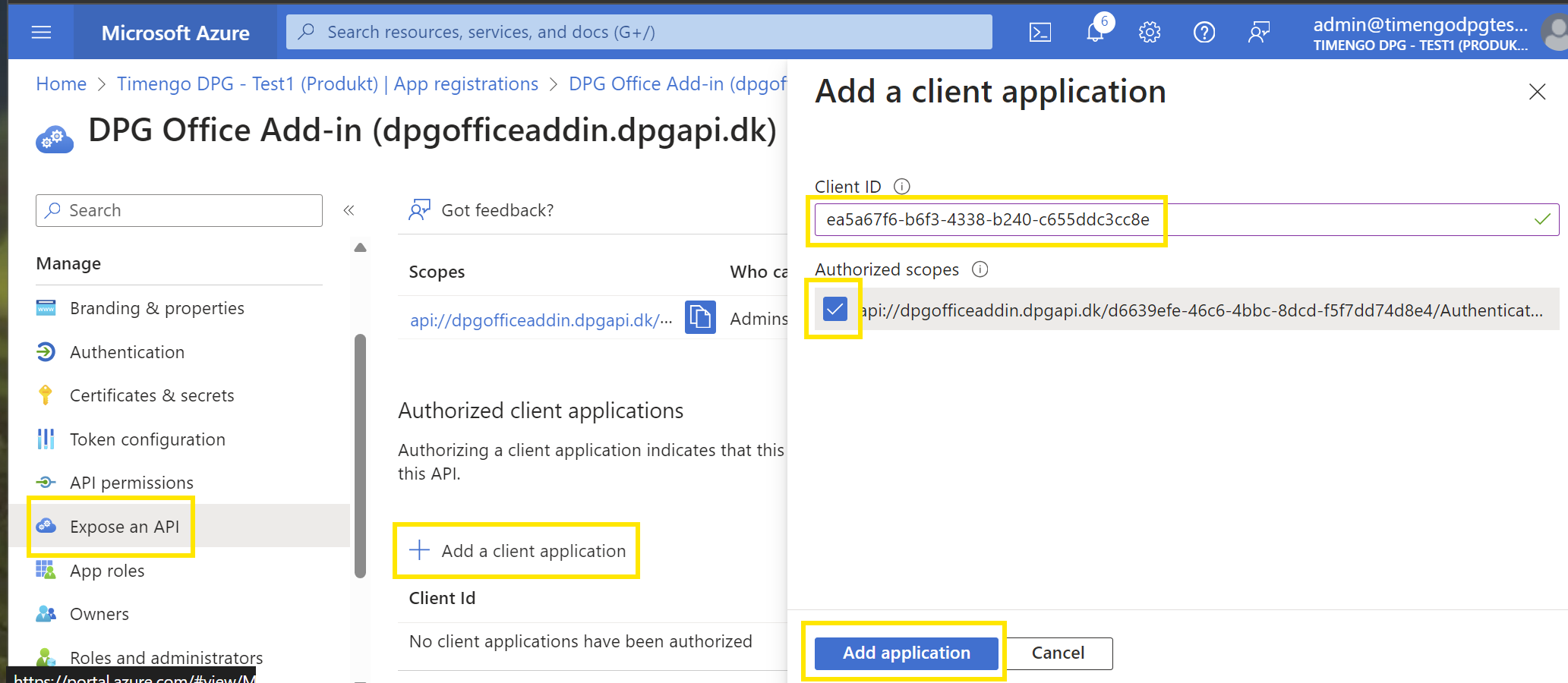
8. Stadig i panelet Expose an API, vælg Add a client application, og indsæt ea5a67f6-b6f3-4338-b240-c655ddc3cc8e, som forhåndsgodkender alle Microsoft Office Application-endpoints. Vælg også feltet Authorized scopes, og afslut ved at vælge Add application:
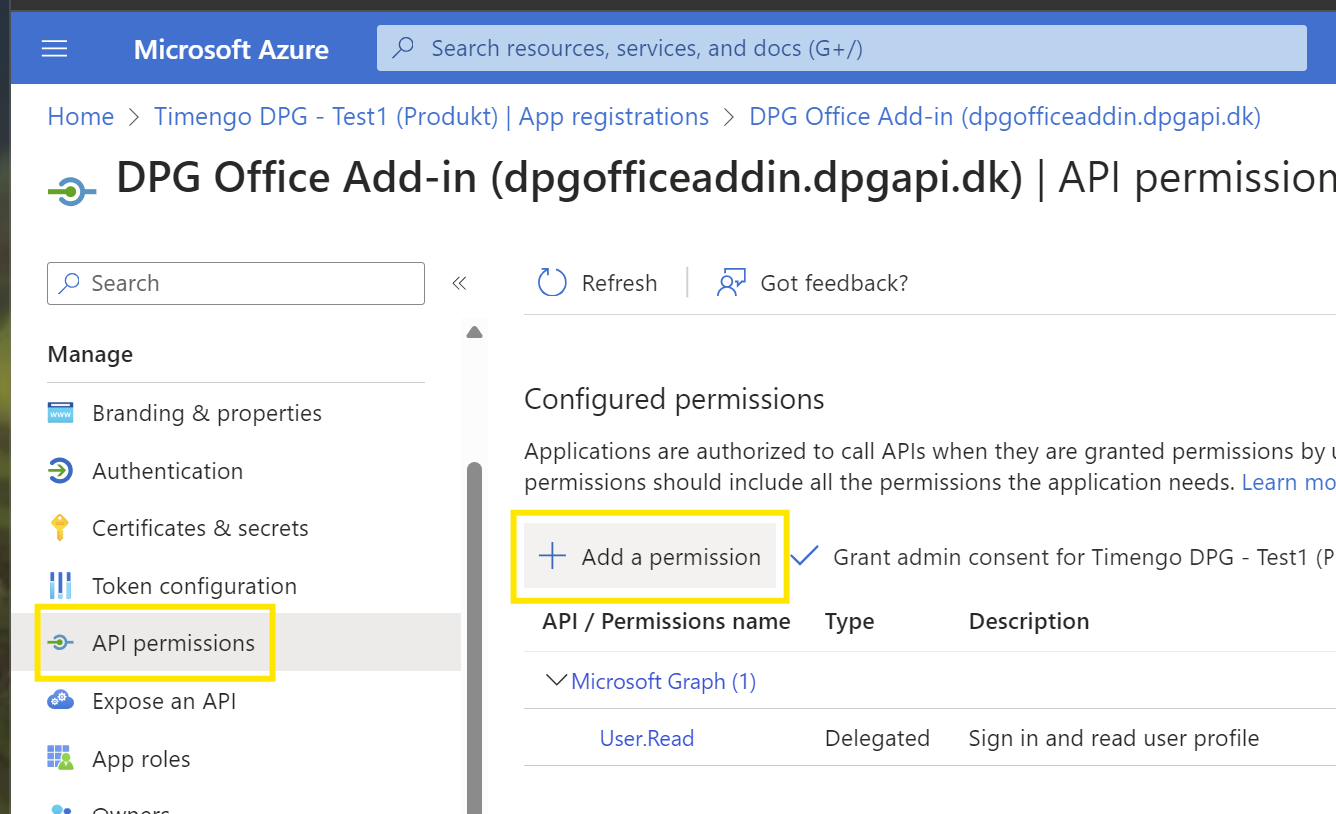
9. Åbn panelet API permissions, og vælg Add a permission:
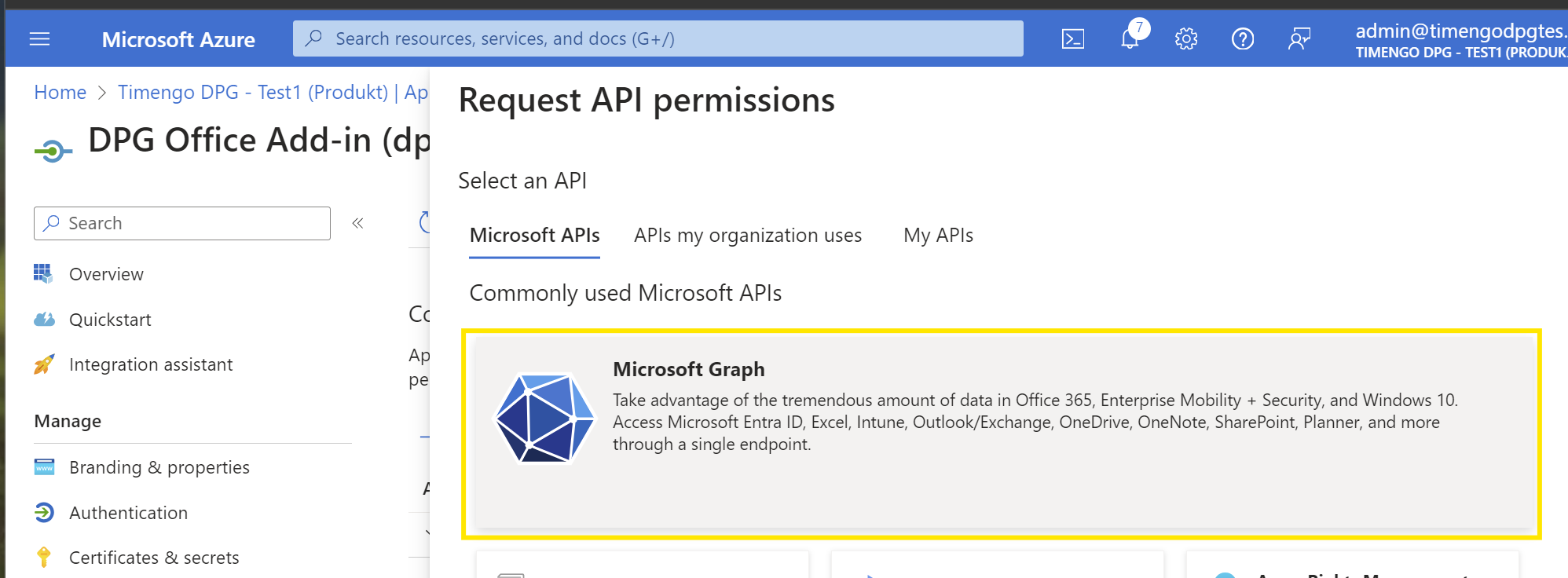
10. Vælg Microsoft Graph:
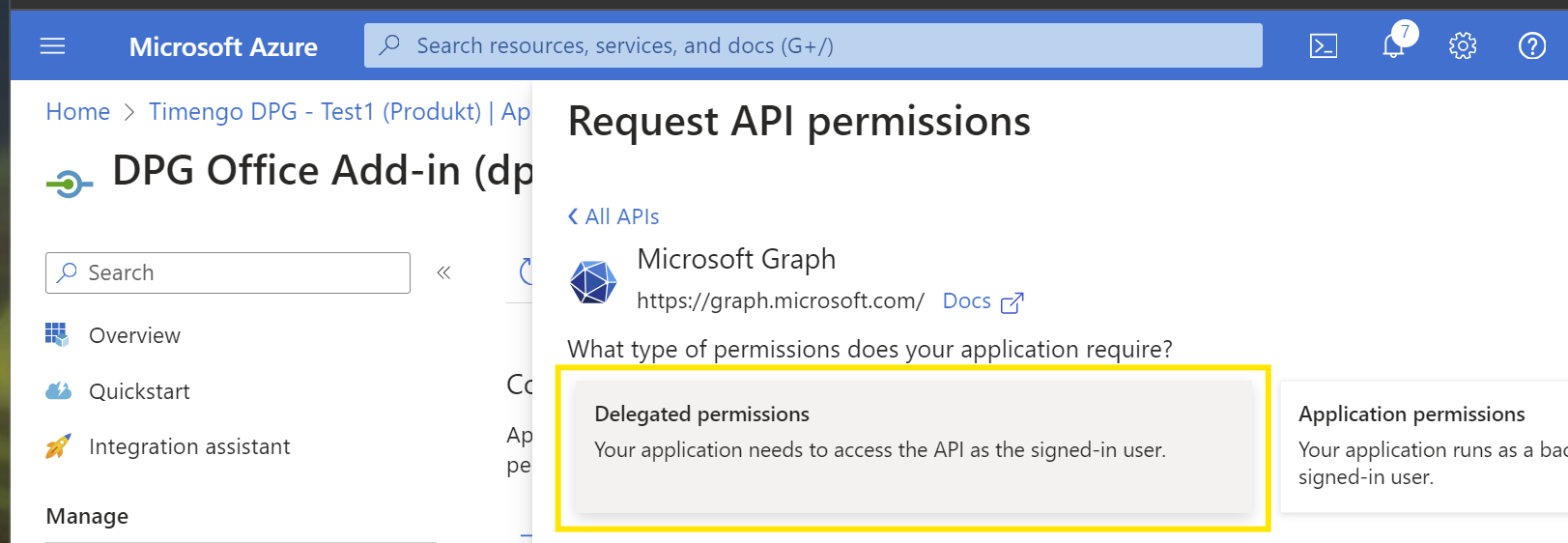
11. Vælg Delegated permissions:
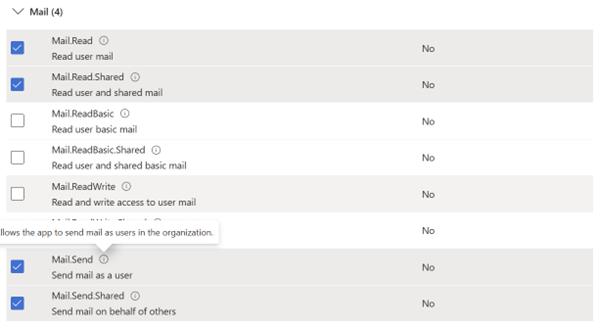
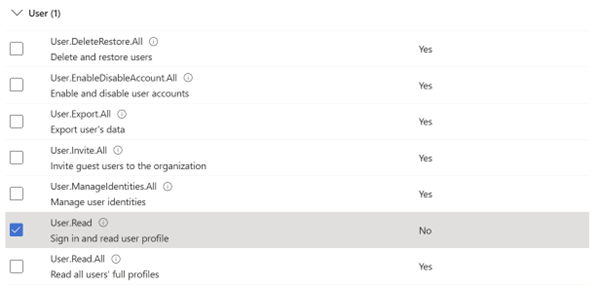
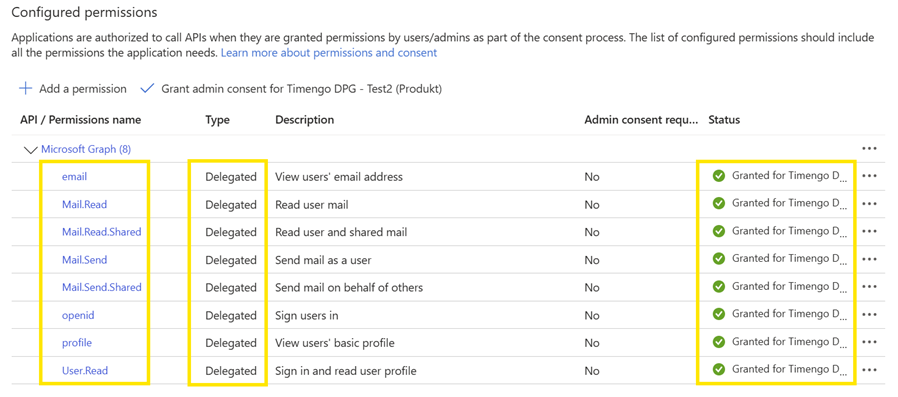
12. Vælg rettigheder for email, openid, profile, Mail.Read, Mail.Send, Mail.Read.Shared, Mail.Send.Shared, og User.Read. Afslut ved at vælge Add permissions:

13. I panelet Configured permissions vælger du Grant admin consent for…, og afslutter ved at vælge Yes.
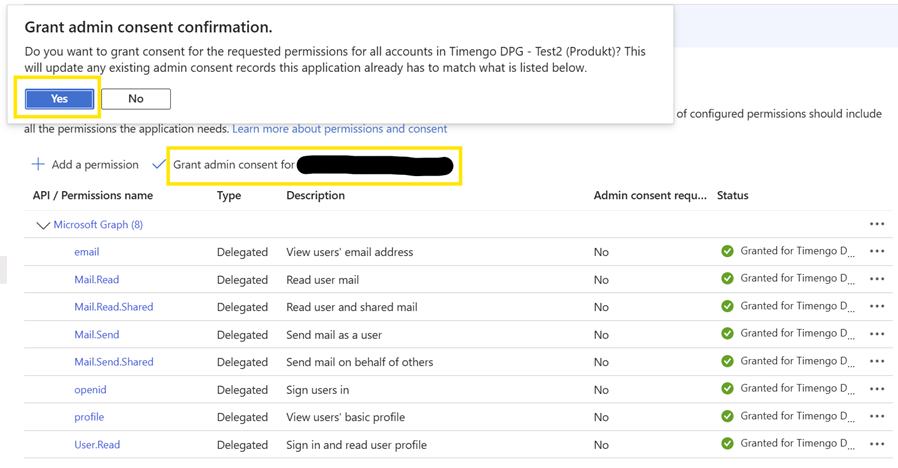
14. Når rettighederne er givet, bør visningen Configured permissions se sådan ud:
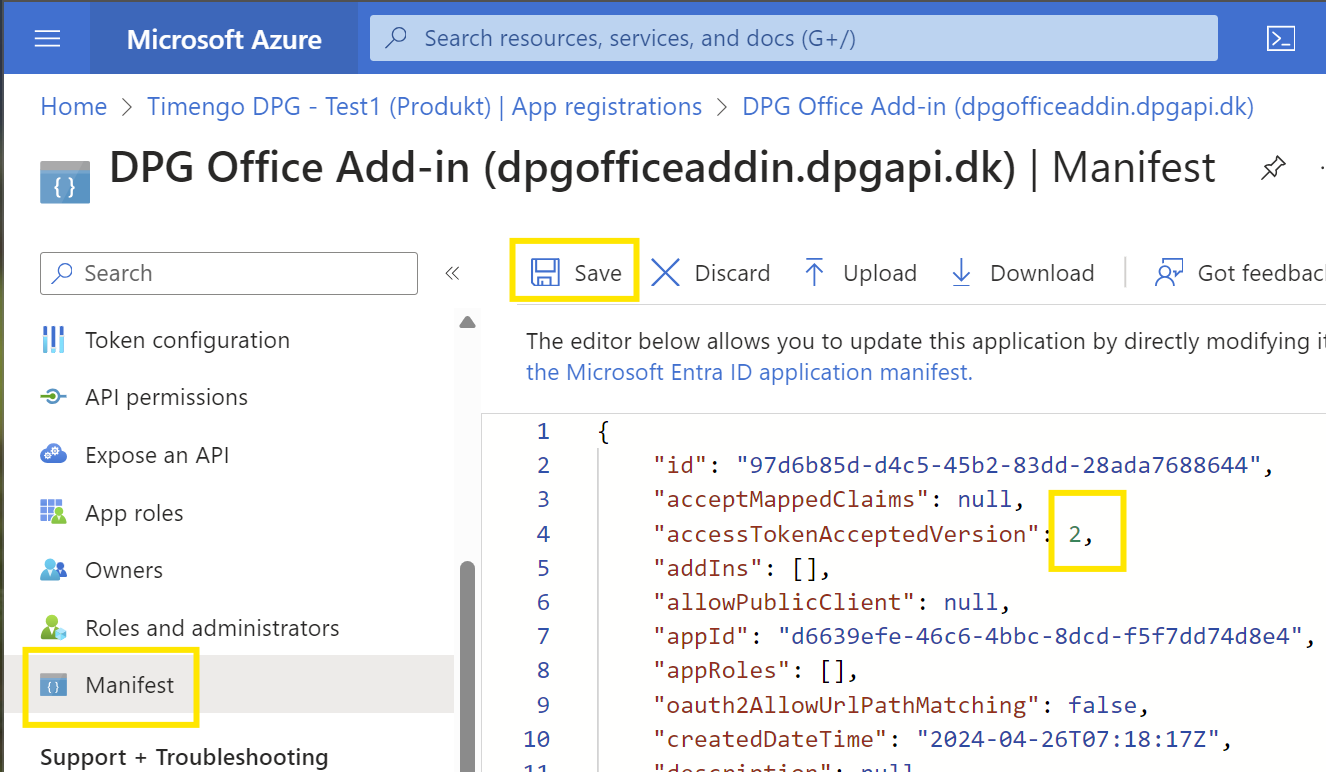
15. Vælg Manifest, og ændr værdien for "accessTokenAcceptedVersion" fra null til 2, og vælg Save for at afslutte.
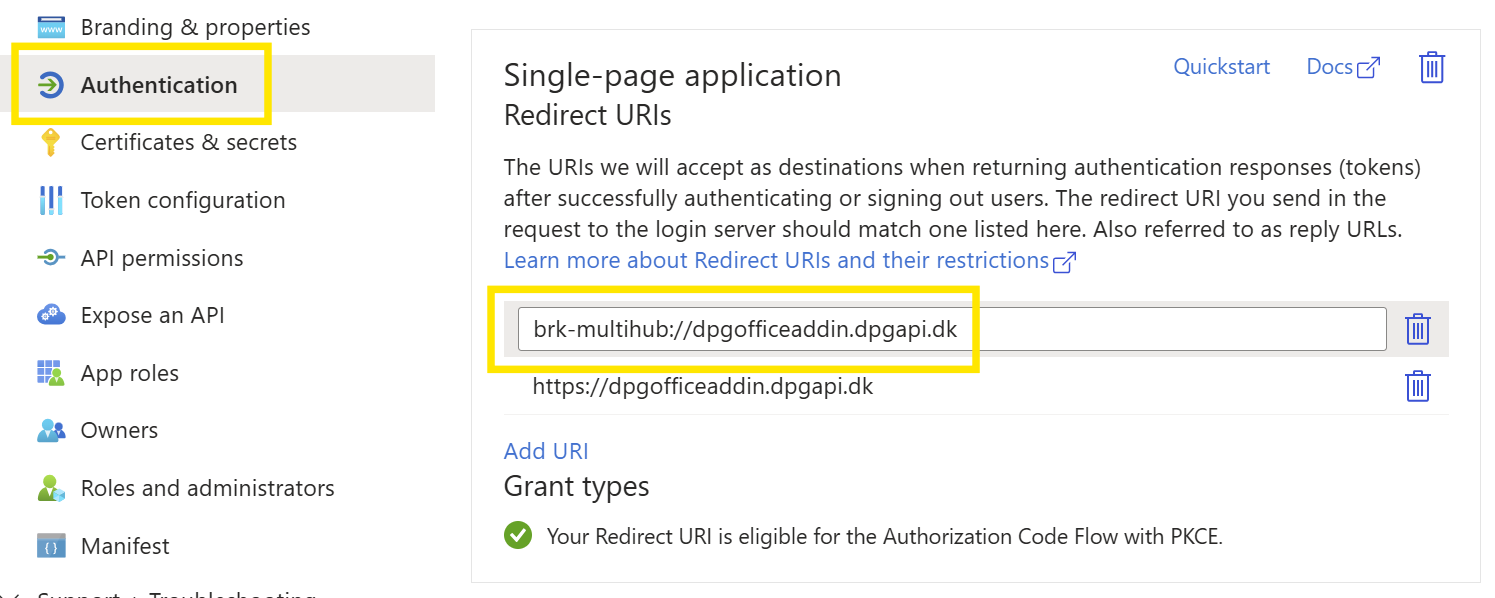
16. Vælg Authentication for den app-registrering, du har oprettet. I sektionen Single-page application Redirect URIs vælger du Add URI og tilføjer værdien brk-multihub://dpgofficeaddin.dpgapi.dk. Vælg Save for at afslutte.
Overdragelse til Timengo DPG
Efter at have gennemført konfigurationstrinene skal du overdrage følgende oplysninger til Timengo DPG som angivet i velkomstbrevet:
- Konfigurations oplysninger for DPG Outlook Office Add-In:
- Application (client) ID
- Directory (tenant) ID
Du har nu gennemført konfigurationen for DPG Outlook Office Addin.